Touch Typing for Your Career: How cueset/type Finds the Keys That Slow You Down
A prose typing test can’t say why you slow down on the doses, figures or code your job types. cueset/type covers 99 roles and builds a 20-lesson plan to fix it.
Most typing tests hand you a passage of plain English and a words-per-minute score at the end. That number says very little about how fast you type at work. A doctor types doses, dates of birth and practice numbers. A lawyer types numbered clauses and case references, a bookkeeper types amounts and account numbers, and a developer types brackets and operators. Those are the keys that sit furthest from the home row or need Shift, and someone who types 80 WPM on prose can be a third slower on them. A single score won't tell them which keys are to blame.
We built cueset/type for anyone who types for a living. It started as a trainer for the IT sector, and it now covers 99 roles in 13 fields, from healthcare and law to customer service, data entry and software. It runs a short diagnostic in the text your job involves, shows you which keys and habits cost you time, and builds a 20-lesson plan around them. Its Virtual Coach uses your webcam to see which finger pressed each key, and in Chrome a small AI model on your own computer can write extra practice text. This article walks through each step with screenshots, and explains how we built the interactive keyboard at the top of this page.
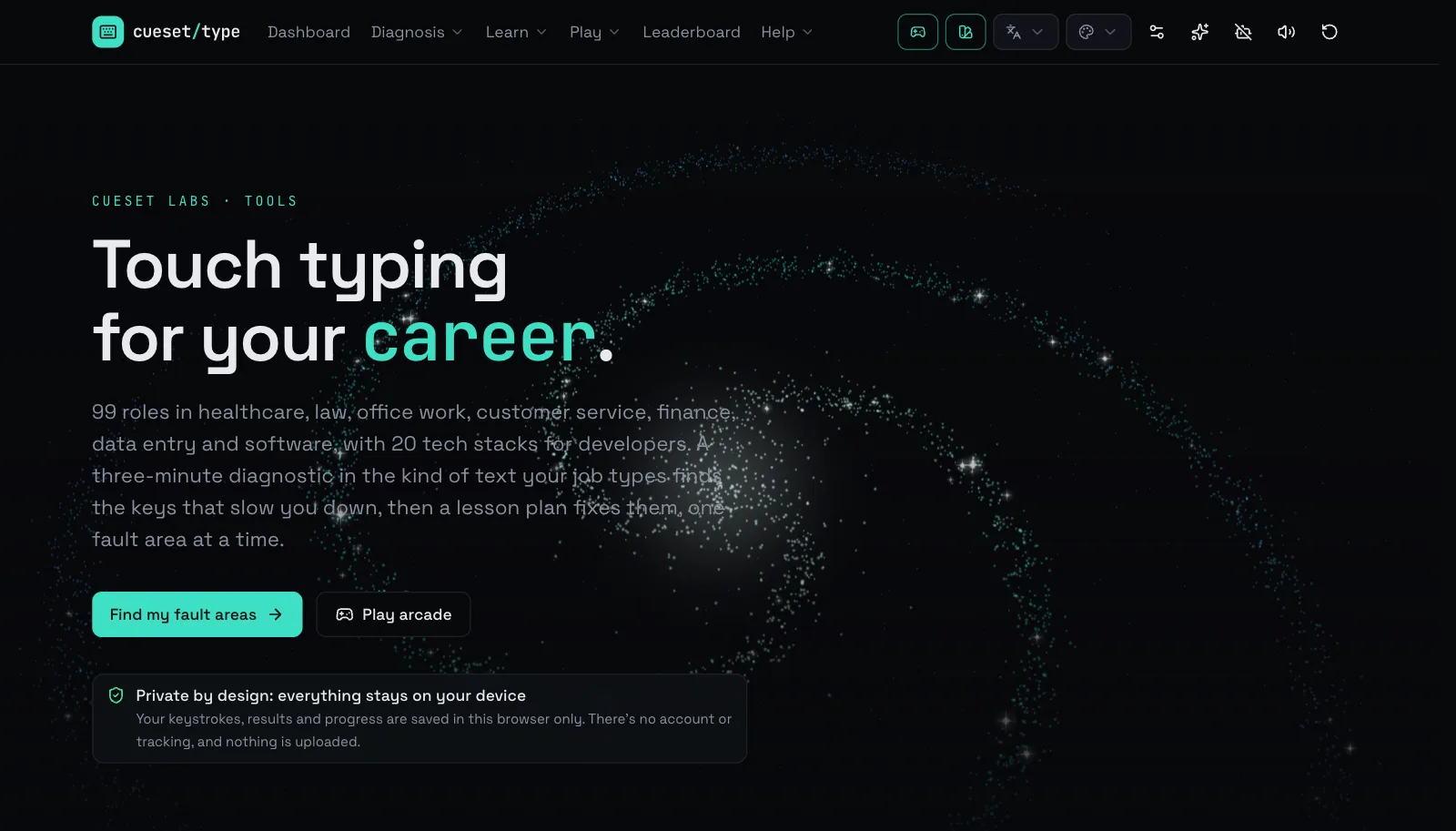 The home page. It needs no account and runs in the browser.
Start with the text your job types
The diagnostic begins with your role. Pick a field, then a role inside it. Healthcare has 13 roles, from GPs and surgeons to pharmacists, paramedics and medical receptionists. Legal has 8, Writing and media and Office and admin have 5 each, and customer service, finance, data entry, sales, education, the public sector and other professions have 3 or 4 each. Software and IT keeps the 39 roles the app started with, plus 20 front-end and back-end stacks, and a General field covers everyday typing, new starters and job seekers.
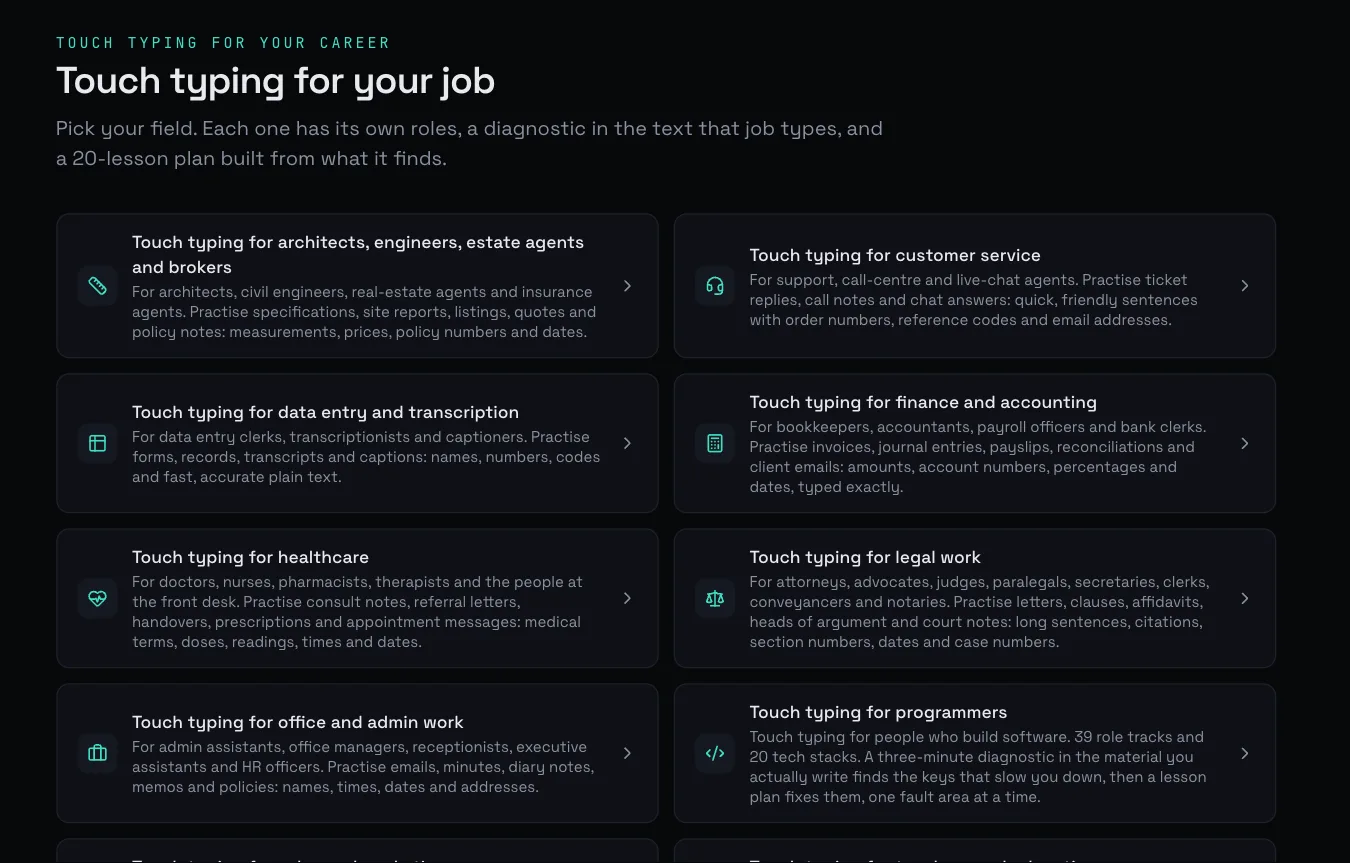 Each field has a page of its own, with its roles and what they practise. A start button picks the role and opens its diagnostic.
Each role types its own material. A GP types consult notes, referral letters and prescriptions, a paralegal types affidavits and citations, a call-centre agent types call notes and ticket replies, and a React developer types JSX. Each role also weights the fault areas differently, so a slip on the number row counts for more on a doctor's report than on a writer's, and a missed bracket counts for most on a developer's.
You then type a few short passages. The beginner level has two, intermediate has three and advanced has four. A wrong key is marked and the cursor moves on, so a mistake never stops the run, and Backspace fixes it if you want.
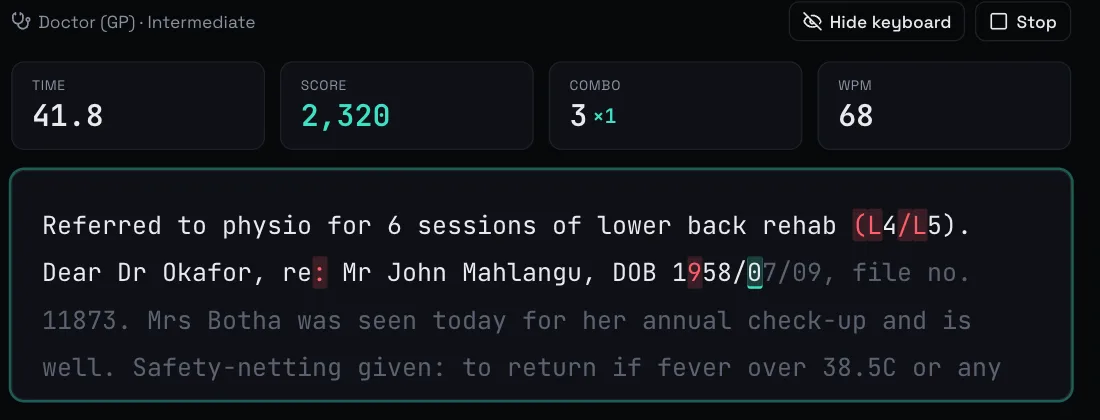
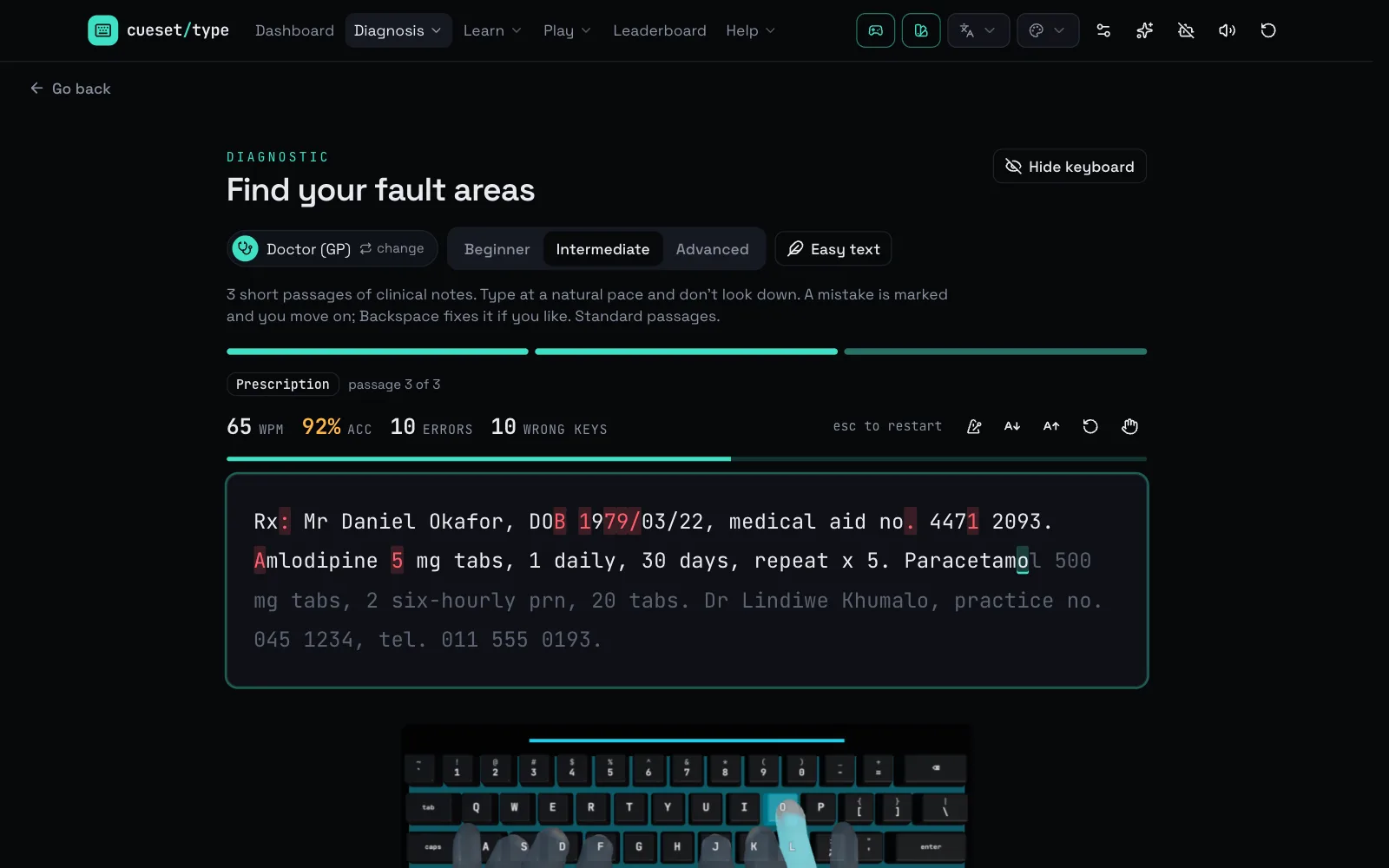 The third passage of a doctor's diagnostic at intermediate level: a prescription. Wrong keys are marked, and the stats above update as you go.
Every keystroke is logged with its timing and whether it was right, and the report and the plan are both built from that log.
A report measured against your own speed
For the screenshots in this article, we ran a GP's diagnostic at intermediate level with a script that typed at a steady pace, slipped onto neighbouring keys on the number row and slashes, and sometimes missed Shift on a capital. The report it produced looks like this:
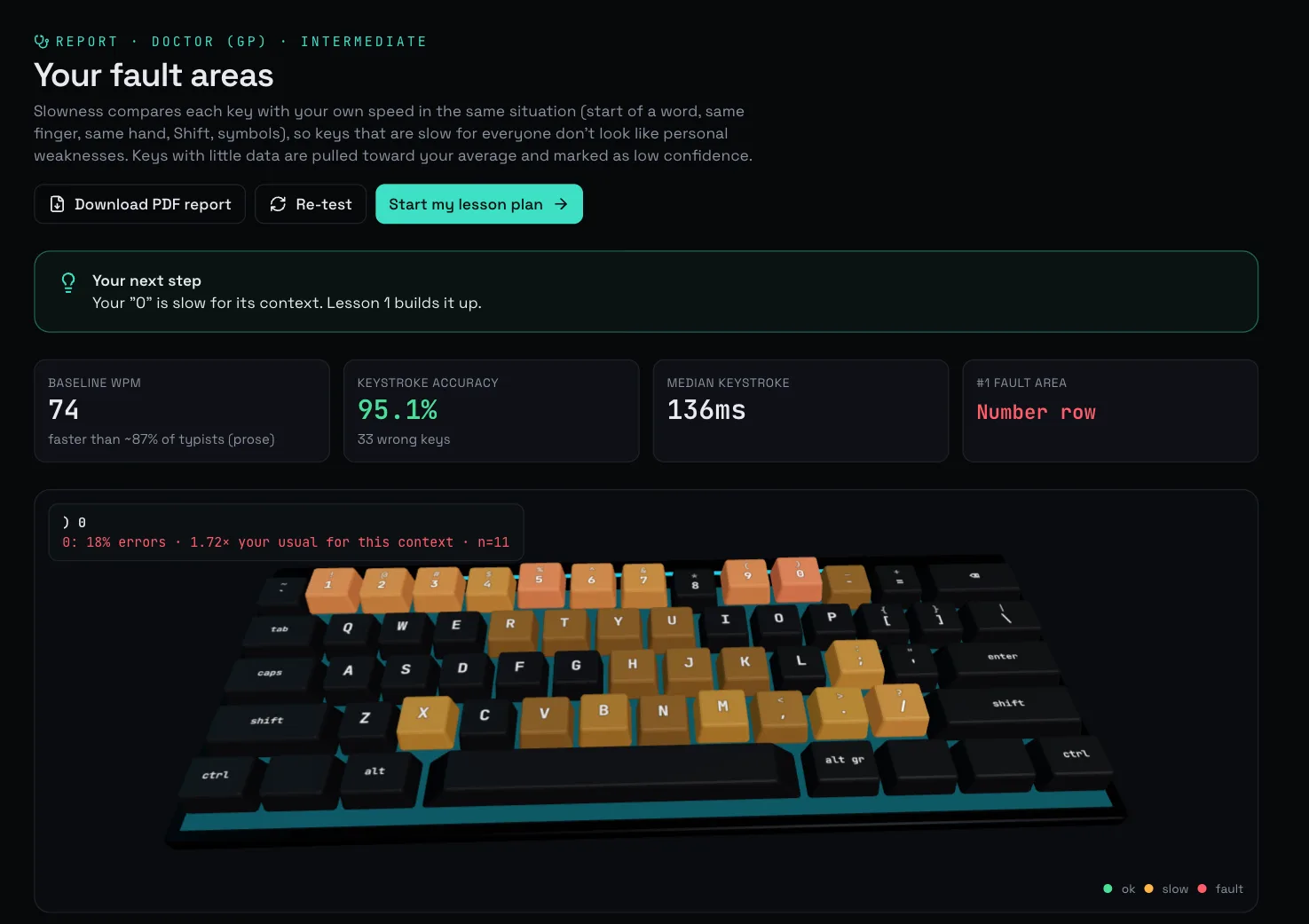 The report for the scripted run. Hovering over the 0 key shows 18% errors and 1.72× the typist's usual time, over eleven presses.
Slowness in the report is relative. A Shift-and-symbol key is slower than a home-row letter for almost everyone, so comparing every key with one overall median would flag the same keys for every typist. Instead, each key is compared with your own speed in the same situation: at the start of a word, on the same finger, on the same hand, with Shift, on a symbol. Pauses longer than two seconds don't count, and neither does the keystroke straight after an error, since that one is mostly about recovering.
Small samples are treated with suspicion too. In our run, the 6 key missed three times out of four, a 75% error rate on only four presses. Per-key error rates are pulled toward your overall rate in proportion to how little data there is, so the report ranks 6 at 20% and marks it as low data. A key counts as weak only when it is worse than your own average, so one unlucky miss doesn't send you off to drill the wrong thing. The 0 key, by contrast, was typed eleven times, and it was both error-prone and 1.7 times slower than usual, so the report's next step names it first.
Keys then roll up into fault areas such as the number row, capitals and Shift, punctuation, operators and brackets, ranked for your role. In our run, the number row came first at 27% errors and nearly twice the usual time, then capitals and Shift at 19%. The rest of the report splits the same run by letter, by cause and by key pair.
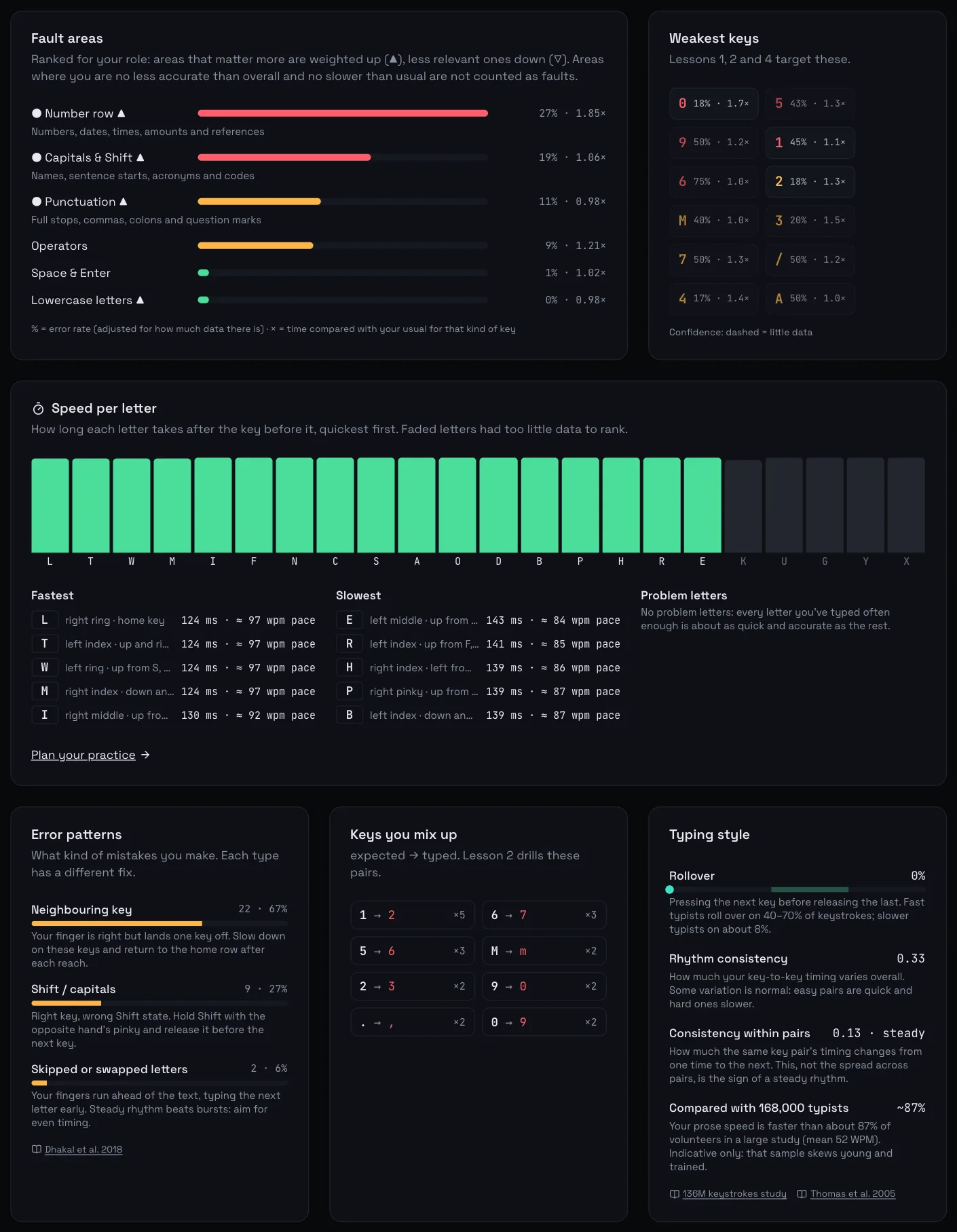 Fault areas, the weakest keys, speed per letter, the kinds of mistakes, the pairs of keys you mix up, and how even your rhythm is.
Error patterns sorts mistakes by cause. Two thirds of ours were neighbouring-key slips, where the finger lands one key off, such as 2 instead of 1. Most of the rest were Shift errors, where the key was right and the Shift state was wrong, such as m instead of M. Those need different fixes, so they are counted separately. Keys you mix up lists the expected and typed pairs, like 1 typed as 2 five times, and lesson 2 uses that list for contrast drills.
Typing style covers rollover (pressing the next key before you release the last), how even your rhythm is, and how your speed compares with a study of 168,000 typists. Our script pressed one key at a time, so its rollover is 0%, which no real typist would show. The transition panels show where the time goes in more detail: our slowest pairs were mo, 20 and 02, the kind of pairs that fill dates and dosage times.
At the top, the report gives one next step written for your result, so you don't have to read every panel and work it out yourself.
A plan built from your own faults
The 20-lesson plan comes straight from the report, in four parts. The first four lessons work on your weakest keys: focus lessons take them a few at a time and mix them into words you already type well, lesson 2 untangles the keys you mix up, and lesson 3 reviews what you've covered. Lessons 5 to 10 connect them: your slowest key pairs, a review in real text, a lesson that re-ranks your keys from your lesson results, a speed run and real text for your role, which for our doctor is clinical notes. Lesson 10 is a midpoint check, a short re-test you haven't seen, compared with your baseline.
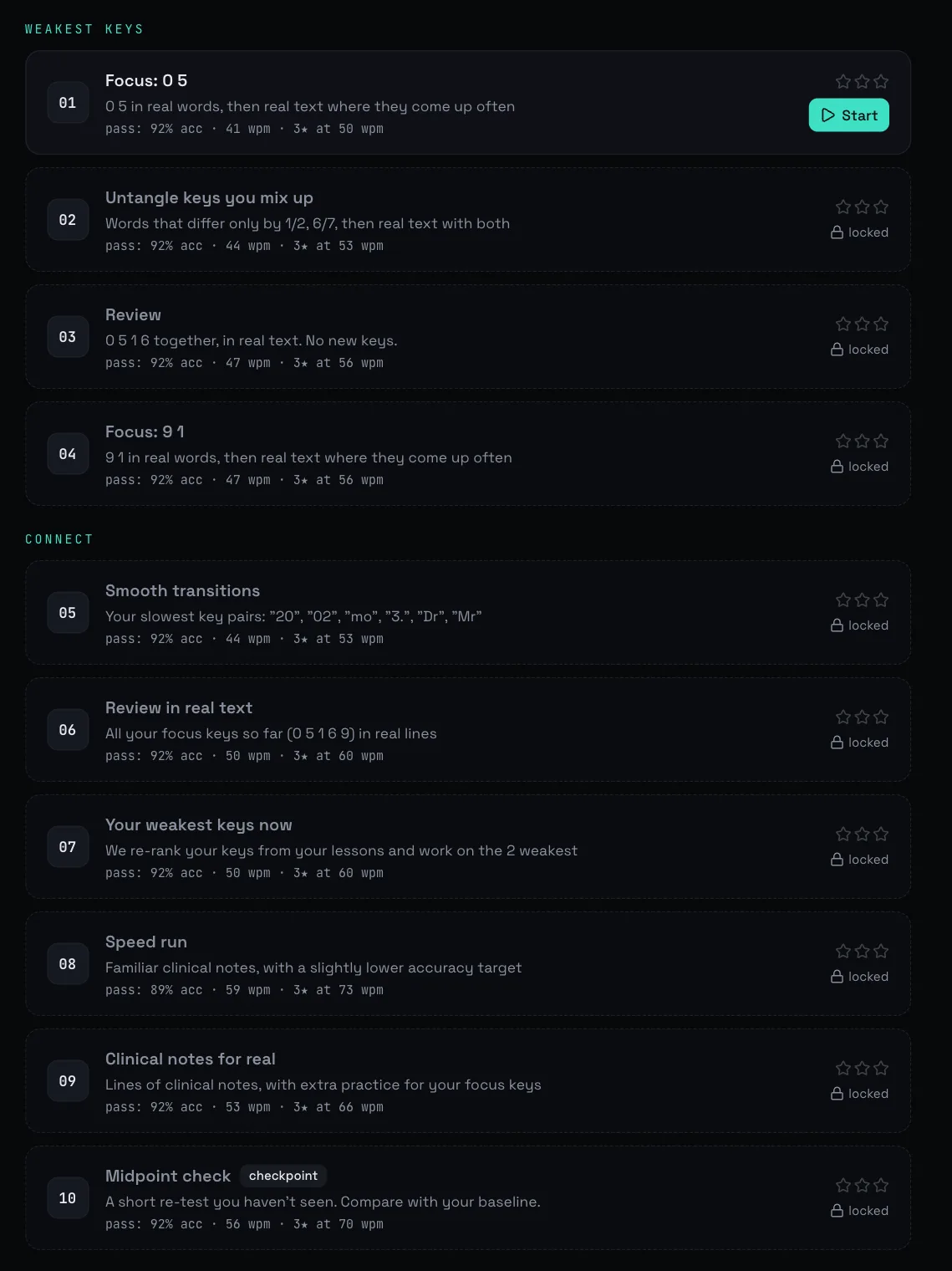 The first half of the plan for the scripted run. Each lesson shows its pass mark and the speed needed for three stars.
Lessons 11 to 15 adapt and mix: they re-rank your keys twice more, revisit the slow pairs and check whether the earlier lessons stuck. Lessons 16 to 20 are real use: everyday text for your role, a second speed run, everyday text with no extra weight on your focus keys, a final rehearsal, and a final check on the text from the midpoint check, so it isn't new to you and the comparison is fair.
Passing a lesson earns a star and opens the next one. Beating the accuracy goal by three points earns a second star, and hitting the speed goal as well earns a third. The speed lessons also have a burst drill: short familiar lines a little over your baseline speed, repeated only when you miss the speed or the accuracy.
Above the lessons, a practice planner asks how many weeks you have, how long each session is and which days you practise, then charts an estimate of your speed by the end, with a best, middle and worst case. It can remind you in the browser or add the sessions to your calendar. The plan suggests one or two lessons a day over two to four weeks, and taking each checkpoint on a later day than the lesson before it. Short, spaced sessions work better than long ones, and sleep helps new motor skills settle.
Virtual Coach: which finger pressed the key
The keystroke log knows which key went down, but not which finger pressed it. If you reach for b with your right index finger, the right letter still appears, so the diagnostic never sees a mistake. Habits like that pull your hand off the home row and slow down the keys around them. Virtual Coach uses your webcam to find them.
Hand tracking runs in the browser with Google's MediaPipe Hand Landmarker, which finds 21 points on each hand in every frame. A one-minute calibration tells it where your keyboard sits in the picture: you line up the camera, drag an outline onto your real keyboard, and type a few rows so it can see where the keys are. From then on, every keystroke is matched to a finger. The app keeps a short history of fingertip positions, and when a key goes down it scores each fingertip by how close it is to the key, how far it dropped and how far it moved towards the key in the 180 ms before the press. The best fingertip wins only if it clearly beats the runner-up. Otherwise the press is recorded as unknown.
The Virtual Coach check is two short passages from your role's material, typed with the camera on, and speed isn't scored. A key counts as a habit once the camera has seen it pressed at least four times and the wrong finger did 30% or more of those presses. The Virtual Plan takes your four strongest habits and gives each one two lessons. The first drills the right finger on its own keys, and the second sets the habit key against the keys of the finger that keeps taking it, so each finger stays in its lane. Three lessons then put all the habit keys together: in words, in real lines from your role, and in a final camera check.
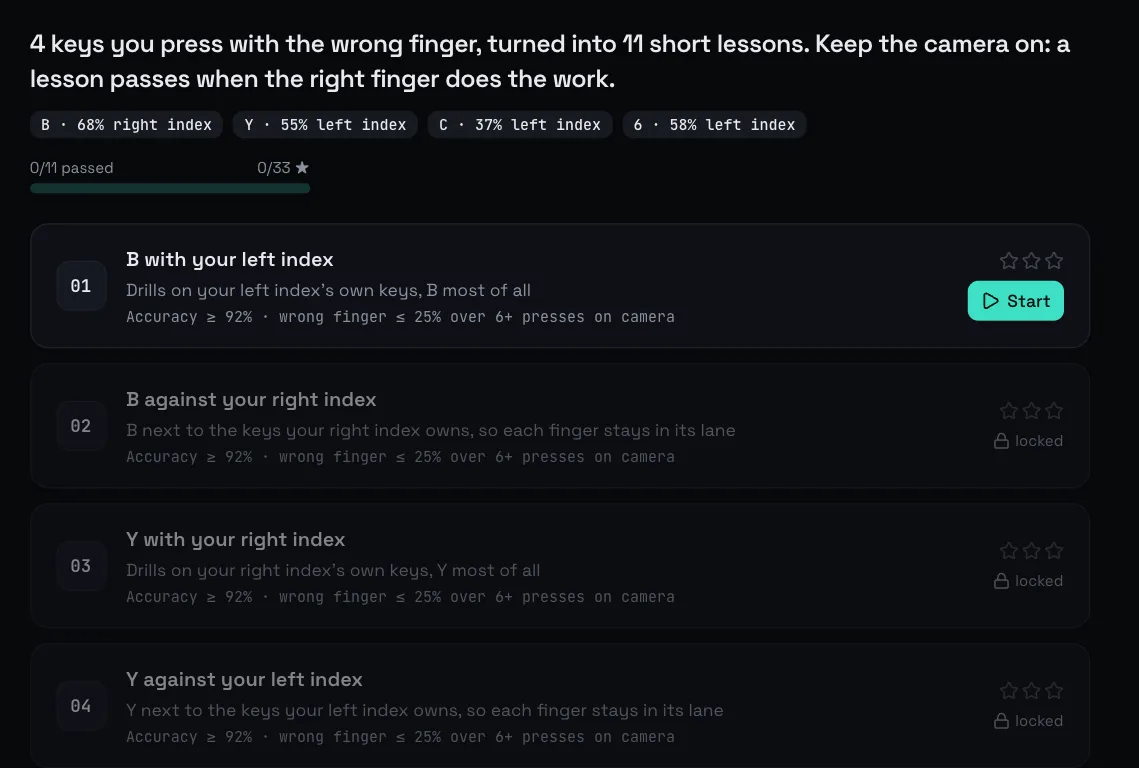 A Virtual Plan built from sample camera data. This typist presses B with the right index finger 68% of the time, so lesson 1 drills the left index finger and lesson 2 sets B against the right index finger's keys.
A lesson passes on accuracy as usual, and the camera must also see few enough wrong fingers: at most 25% in the per-habit lessons, 15% in the words and real lines, and 10% in the final check, over at least six presses it could attribute. When the camera saw too few presses, the lesson is judged on accuracy alone and says so. The habits feed back into the diagnostic too: a key you press with the wrong finger ranks higher among the weak keys in your main plan. Virtual Coach also has six one-hand lessons for each hand, where the other hand rests on its home keys and only presses Space and Shift.
On the typing screens, the same camera drives the Hand Hologram. It projects your hands onto the 3D keyboard as you type and lists each wrong finger on a card beside it, with the finger the key wanted. Virtual Invaders, one of the retro games, drops letters down the lane of the finger that owns them, and the camera can check that you shot each one with the right finger.
The video never leaves your device, and no frame is stored. The browser keeps only the calibration and per-key counts of which finger pressed what, with no timings or positions, and nothing from the camera goes to the server or the leaderboard. One button deletes the counts and the plan. The camera stops when you turn it off, hide the tab, leave the typing pages, or go five minutes with no hands in view and no typing. Virtual Coach is for adults on a desktop browser, and it is marked experimental: hand tracking can misread fingers in low light, at odd angles or when you type fast, so treat what it tells you as a guide.
A small AI model in your browser
Chrome on a desktop computer can run Gemini Nano, a small language model from Google, and its Prompt API lets a web page use that model on your own computer. Nothing you type is sent to a server, because the model runs on the device. cueset/type uses it in three places: Custom practice writes a short practice text around your weak keys and a topic you choose, Today's focus picks a practice theme from a note you write, and the role articles can be rewritten into a version for you.
It is off by default. The sparkle button in the top bar turns it on, after a screen that names the model, what the computer needs and Google's terms. The browser then downloads the model, which can take a while.
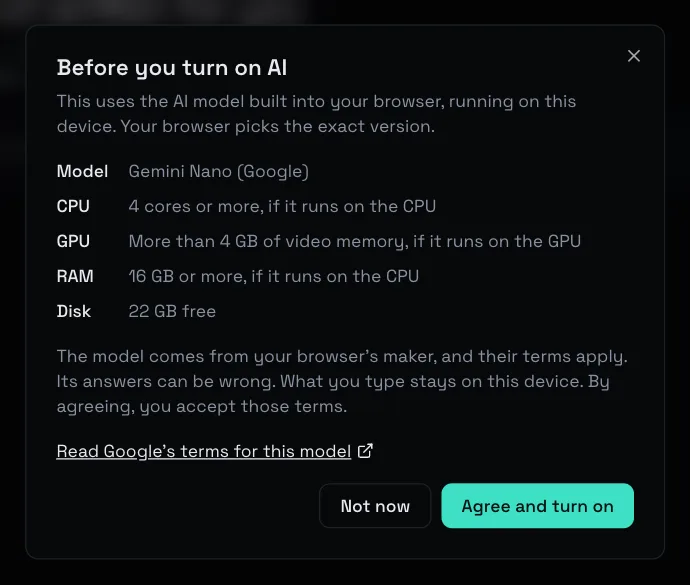 What you agree to before the browser downloads the model. Microsoft Edge's preview of the same API runs Microsoft's Phi-4-mini instead, and the screen names that model there.
Small models get things wrong, so the app never lets this one near anything it measures. Generated text never goes into the diagnostic, a graded lesson or your stars, and Custom practice isn't graded. Today's focus can only answer with a theme from a fixed list, and the browser holds the model to that list. Custom practice checks every text before you see it: the length, the characters, no links or numbers, no names the model made up, nothing unsafe, and at least one of your weak keys. If two tries fail the checks, the app shows its own reviewed text instead and says so.
The model needs a desktop computer with 22 GB of free disk and either a graphics card with more than 4 GB of video memory or 16 GB of RAM, and it only works in English and Spanish so far. Everything else in the app works without it.
The arcade, games and courses
Once the plan is under way, the arcade gives you something lighter. You type endless text from your role's material against the clock, and clean keystrokes build a combo of up to ×8. Combos only build while your accuracy stays above 90% and reset on any error, so mashing the keyboard doesn't pay.
 An arcade run on clinical notes. Slips on the brackets, the slash and the date of birth reset the combo.
Most of the retro games play words from your own role. A set of five plays as office work for most roles, with games like Inbox Triage, Switchboard and Front Desk Rush, and as software work for IT roles, with DDoS Defense, Bug Hunter and Pipeline Runner. You can switch either way on each game's start screen. For live play, Bot Race puts you in a private room with up to seven friends, and Boss Duels is a ladder of bosses to type your way past. Daily and weekly challenges use your role's own practice text, the same for everyone in that role and language.
The Touch Typing courses start with a Beginner level of 16 key-by-key lessons, from the home row to the number row, then Beginner Wrap-Up courses at three levels. Left-hand and right-hand courses train each hand on its own. The Intermediate and Advanced courses are written for IT: version numbers, IP addresses, the command line, SQL, JSON and YAML, and regular expressions.
It supports nine keyboard layouts (US, UK, Spanish, German, French, Dvorak, Colemak, Colemak-DH and Canary) on a standard board or a split 34-key one, with a printable finger placement guide for each, and four interface languages: English, Afrikaans, isiZulu and Spanish.
Your keystrokes, results and progress stay in your browser, along with everything the camera records and everything the AI model writes, and there's no account. A score leaves your device only if you choose to post it to the shared leaderboard.
How the keyboard at the top of this page works
The report's keyboard in cueset/type is built with three.js through react-three-fiber, and hovering over a key shows its numbers. The figure at the top of this page does the same with plain three.js and the numbers from our scripted doctor's run, so you can try it without taking a diagnostic.
Pointing at something in a 3D scene is called raycasting. You turn the pointer's position into a ray from the camera and ask which objects the ray passes through. Each key cap is its own mesh, so the first one the ray hits is the key under the pointer:
// Pointer position in normalised device coordinates: -1 to 1 on both axes
pointer.x = ((event.clientX - rect.left) / rect.width) * 2 - 1;
pointer.y = -((event.clientY - rect.top) / rect.height) * 2 + 1;

// Each frame, after drawing, while the mouse is over the figure
raycaster.setFromCamera(pointer, camera);
const hit = raycaster.intersectObjects(capMeshes, false)[0];
picked = hit ? hit.object.userData.cap : -1;
The legends sit on top of the caps, so they opt out of raycasting. Without that, the ray would hit a legend first and miss the key underneath it.
The ray is cast on every frame while the mouse is over the figure. The keyboard sways and can be dragged, so the key under a pointer that hasn't moved still changes.
On a phone there is no hover, so a tap picks a key once and the selection stays until the next tap. A press that moves more than a few pixels turns the figure instead.
The canvas is hidden from screen readers, so the caption under it says what each view shows. Readers who prefer reduced motion, or whose browser has no WebGL, never download the 3D code.
React-three-fiber's onPointerOver does the same raycast for you, which is how the app's own report works.
Try it
A diagnostic takes about three minutes. Open cueset/type, or go straight to your field's page, pick your role, and type at your normal pace, since the report can only find your habits if you type with them. For Virtual Coach you also need a webcam that can see your hands on the keys. One on a stand, angled down at the keyboard, works best, or you can tilt a laptop screen back until its camera looks down at the keys. The evidence and help page lists the research behind the measurements, including Dhakal and colleagues' 2018 study of 136 million keystrokes.