Touch Typing for the IT Sector: How cueset/type Finds the Keys That Slow You Down
A prose typing test can’t tell you why you slow down on the code, commands and user stories an IT job involves. cueset/type finds the keys that cost you time and builds a 10-lesson plan around them, and its Virtual Coach uses your webcam to catch wrong-finger habits.
Most typing tests hand you a passage of plain English and a words-per-minute score at the end. That number says very little about how fast you type at work in IT. Code, commands, SQL and config files are full of brackets, operators, quotes and capitals, which are the keys that sit furthest from the home row and need Shift. Someone who types 80 WPM on prose can be a third slower inside a JSX block, and a single score won't tell them which keys are to blame.
We built cueset/type for people across the IT sector, from developers and data engineers to product owners and scrum masters. It runs a short diagnostic in the material your job involves, shows you which keys and habits cost you time, and builds a 10-lesson plan around them. Its Virtual Coach also uses your webcam to see which finger pressed each key. This article walks through each step with screenshots, and explains how we built the interactive keyboard at the top of this page.
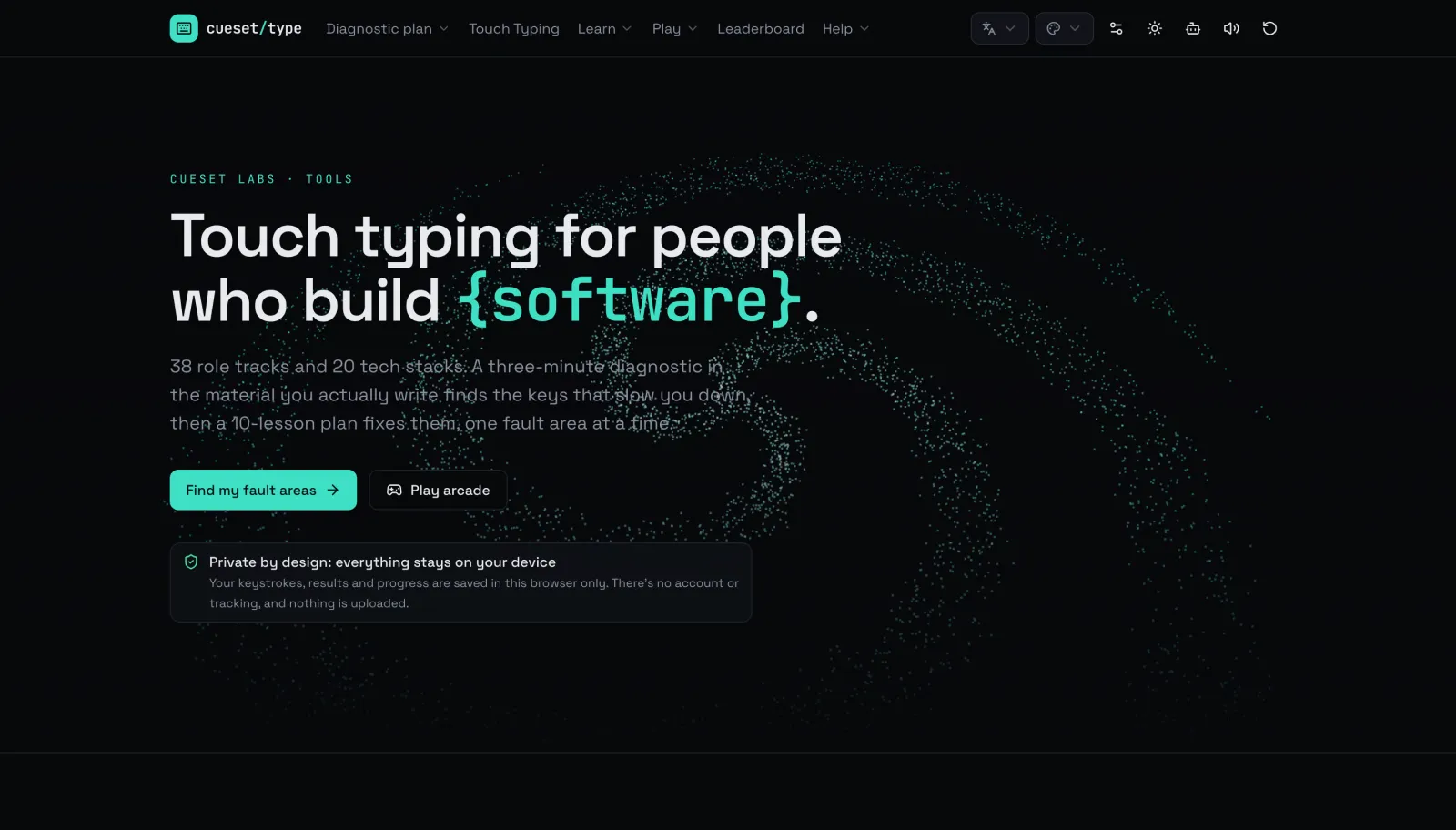 The home page. It needs no account and runs in the browser.
Start with the material you actually type
The diagnostic begins with your role. There are 41 role tracks across engineering, data and AI, infrastructure and security, quality, delivery, leadership, product, design and governance, plus a general track for new starters and 20 front-end and back-end stacks. On React you type JSX, as a data engineer you type PySpark and dbt, and as a product owner you get user stories and client emails. Each role also weights the fault areas differently, so a missed bracket counts for more on a developer's report than on a scrum master's.
You then type a few short passages, moving from prose to code. The beginner level has two passages, and intermediate and advanced add more. A wrong key is marked and the cursor moves on, so a mistake never stops the run, and Backspace fixes it if you want. Indentation after Enter is typed for you, the same as in your editor. Programming ligatures are switched off, so => and != look exactly like what you type.
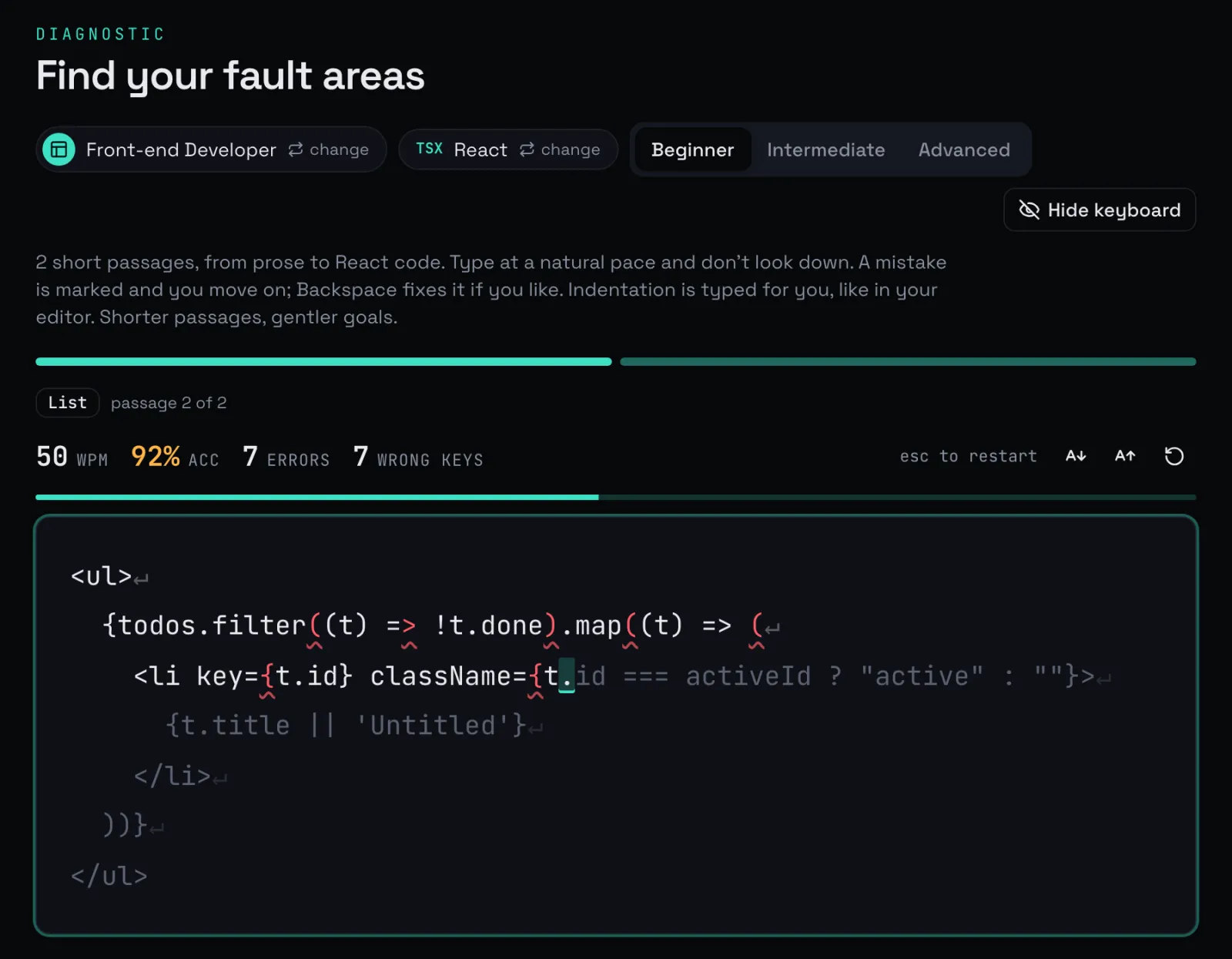 The second passage of a front-end diagnostic. Wrong keys are underlined, and the stats above update as you go.
Every keystroke is logged with its timing and whether it was right, and the report and the plan are both built from that log.
A report measured against your own speed
For the screenshots in this article, we ran a front-end diagnostic with a script that typed at a steady pace and slipped on brackets and operators on purpose. The report it produced looks like this:
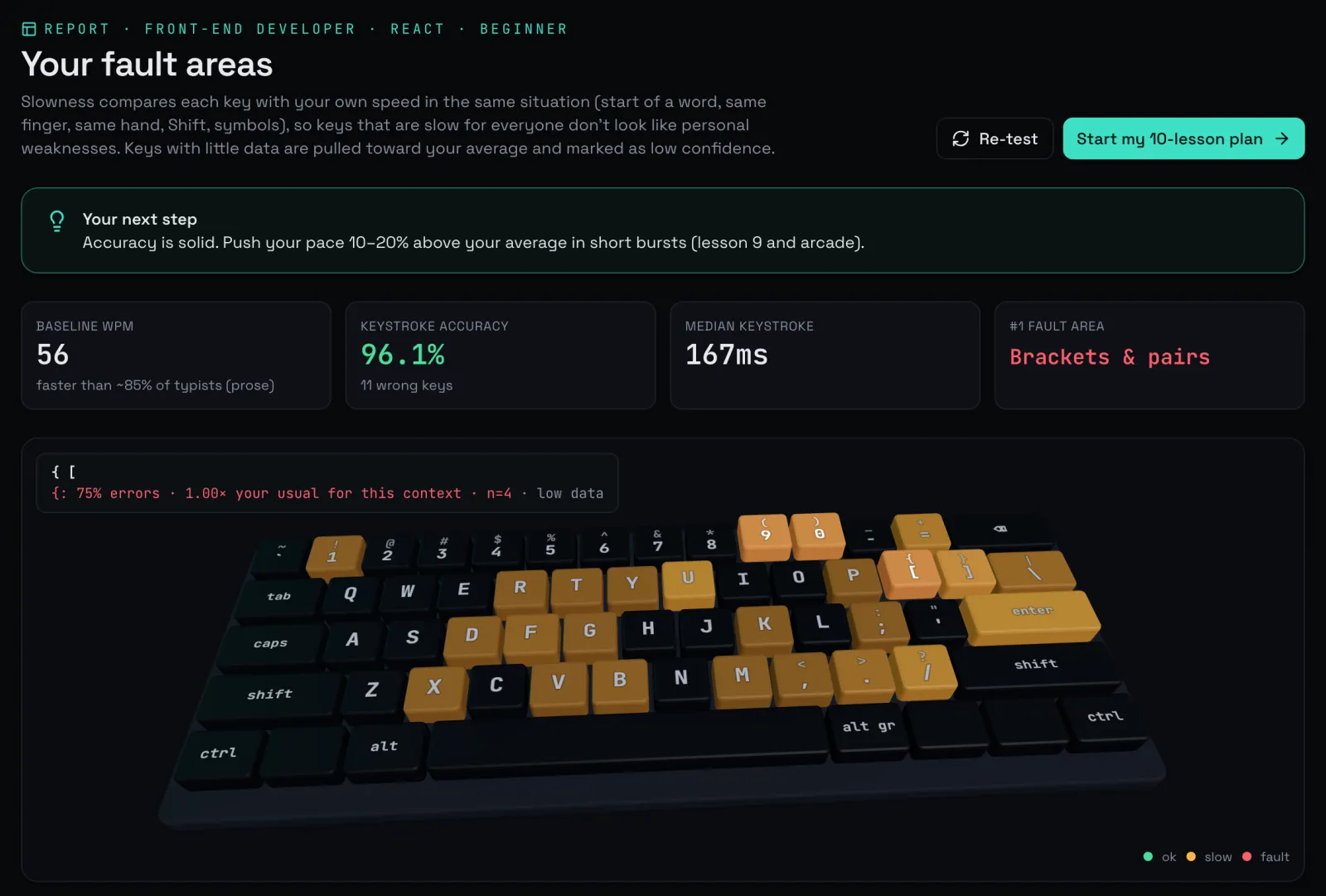 The report for the scripted run. Hovering over the { key shows 75% errors over only four samples, marked as low data.
Slowness in the report is relative. A Shift-and-symbol key is slower than a home-row letter for almost everyone, so comparing every key with one overall median would flag the same keys for every typist. Instead, each key is compared with your own speed in the same situation: at the start of a word, on the same finger, on the same hand, with Shift, on a symbol. Pauses longer than two seconds don't count, and neither does the keystroke straight after an error, since that one is mostly about recovering.
Small samples are treated with suspicion too. In our run, the { key shows a 75% error rate, but it was typed only four times. Per-key error rates are pulled toward your overall rate in proportion to how little data there is, and each key is marked low, medium or high confidence. A key counts as weak only when it is worse than your own average, so one unlucky miss doesn't send you off to drill the wrong thing.
Keys then roll up into fault areas such as brackets and pairs, operators, quotes, digits and capitals, ranked for your role. In our run, brackets and pairs came first at 24% errors. The rest of the report splits the same run by cause, by key pair and by finger.
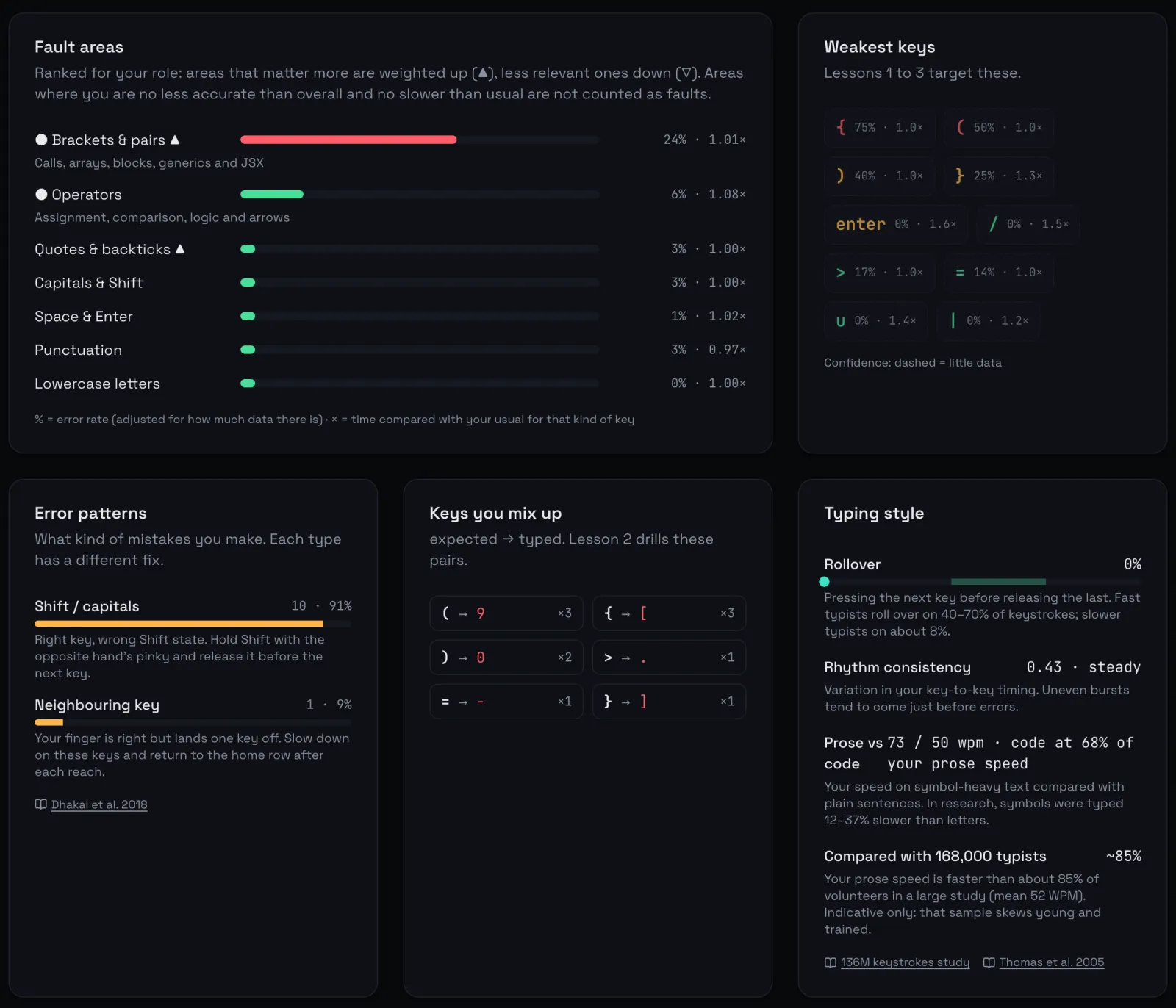 Fault areas, the weakest keys, the kinds of mistakes, the pairs of keys you mix up, and how your speed on code compares with prose.
Error patterns sorts mistakes by cause. Most of ours were Shift errors, where the key was right and the Shift state was wrong, such as [ instead of {. A slip onto the neighbouring key needs a different fix, so the two are counted separately. Keys you mix up lists the expected and typed pairs, like ( typed as 9, and lesson 2 uses that list for contrast drills.
Typing style covers rollover (pressing the next key before you release the last), how even your rhythm is, and your code speed as a share of your prose speed. Our run typed code at 68% of its prose speed. The finger and transition panels show where the time goes in more detail: our slowest pair was </, which shows up constantly in JSX.
At the top, the report gives one next step written for your result, so you don't have to read every panel and work it out yourself.
A plan built from your own faults
The 10-lesson plan comes straight from the report. Focus lessons take your weakest keys a few at a time and mix them into words you already type well. Review lessons bring the keys you've worked on together. Lesson 5 drills your slowest key pairs, lesson 7 re-ranks your keys from your lesson results and goes after the weakest ones again, lesson 8 is a speed run, and lesson 9 is real material for your role. Lesson 10 is a checkpoint: a fresh diagnostic you haven't seen, compared with your baseline.
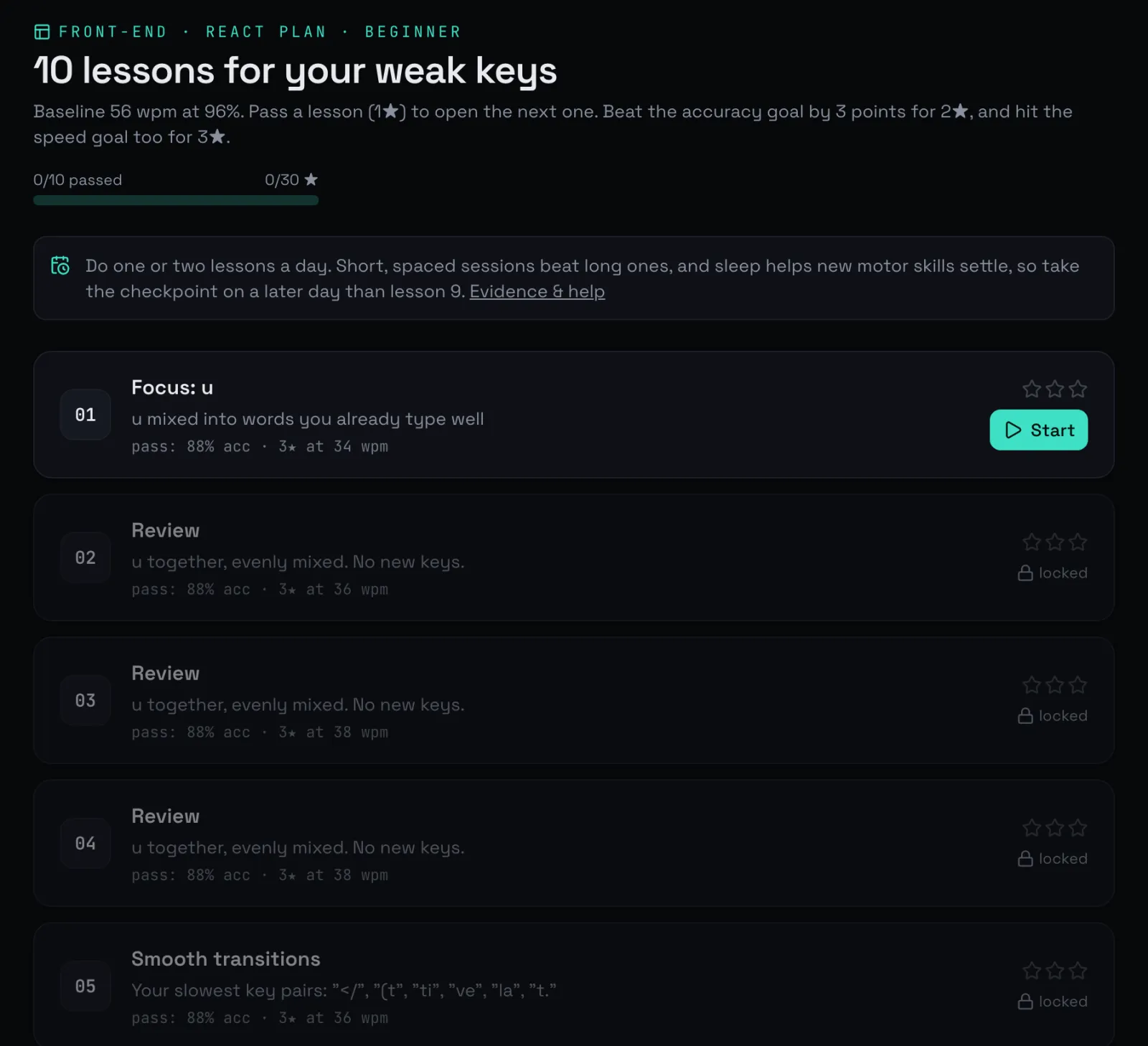 The plan for the scripted run. Each lesson shows its pass mark and the speed needed for three stars.
Passing a lesson earns a star and opens the next one. Beating the accuracy goal by three points earns a second star, and hitting the speed goal as well earns a third. The plan also suggests one or two lessons a day and taking the checkpoint on a later day than lesson 9. Short, spaced sessions work better than long ones, and sleep helps new motor skills settle.
Virtual Coach: which finger pressed the key
The keystroke log knows which key went down, but not which finger pressed it. If you reach for b with your right index finger, the right letter still appears, so the diagnostic never sees a mistake. Habits like that pull your hand off the home row and slow down the keys around them. Virtual Coach uses your webcam to find them.
Hand tracking runs in the browser with Google's MediaPipe Hand Landmarker, which finds 21 points on each hand in every frame. A one-minute calibration tells it where your keyboard sits in the picture: you line up the camera, drag an outline onto your real keyboard, and type a few rows so it can see where the keys are. From then on, every keystroke is matched to a finger. The app keeps a short history of fingertip positions, and when a key goes down it scores each fingertip by how close it is to the key, how far it dropped and how far it moved towards the key in the 180 ms before the press. The best fingertip wins only if it clearly beats the runner-up. Otherwise the press is recorded as unknown.
The Virtual Coach check is two short passages from your role's material, typed with the camera on, and speed isn't scored. A key counts as a habit once the camera has seen it pressed at least four times and the wrong finger did 30% or more of those presses. The Virtual Plan takes your four strongest habits and gives each one two lessons. The first drills the right finger on its own keys, and the second sets the habit key against the keys of the finger that keeps taking it, so each finger stays in its lane. Three lessons then put all the habit keys together: in words, in real lines from your role, and in a final camera check.
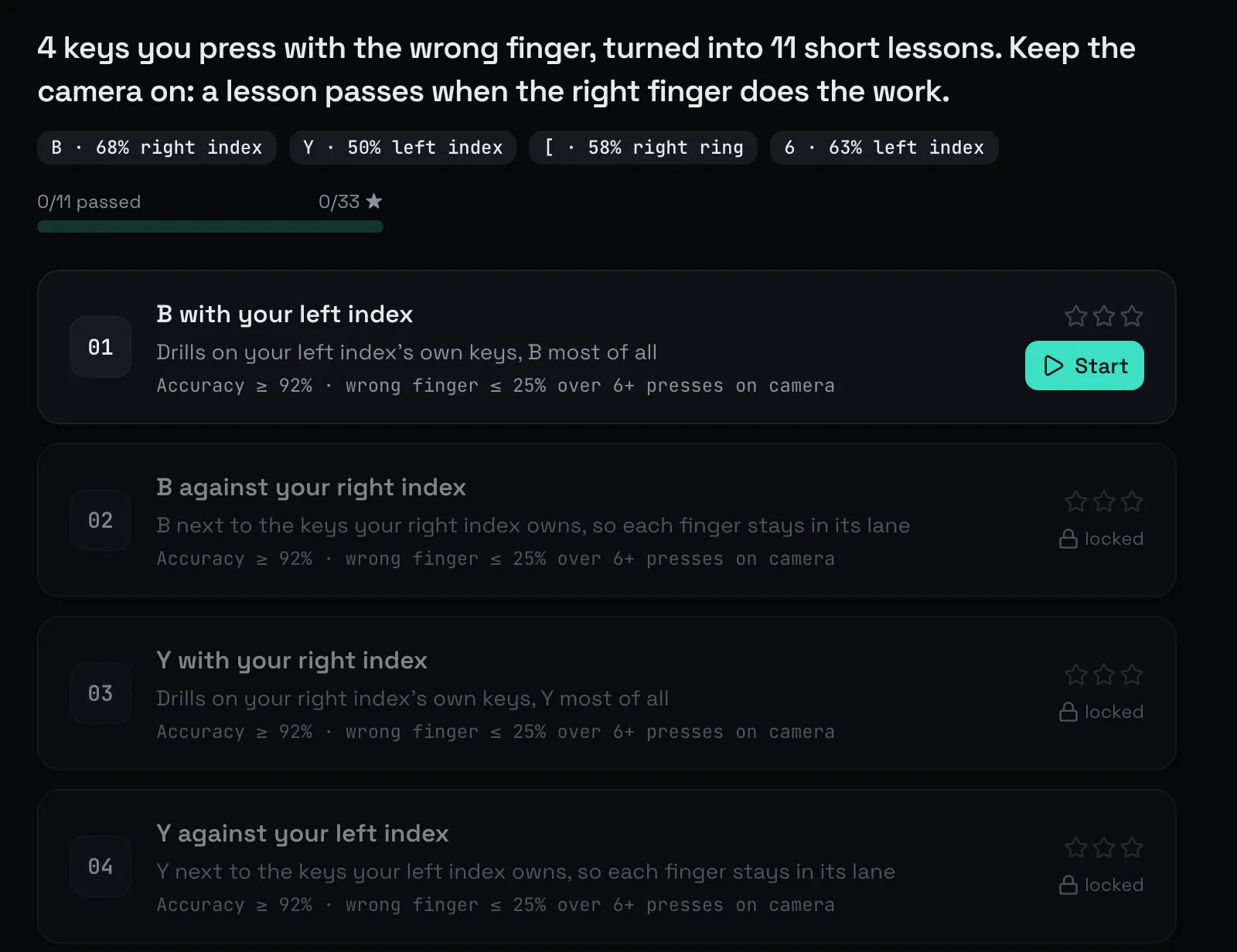 A Virtual Plan built from sample camera data. This typist presses B with the right index finger 68% of the time, so lesson 1 drills the left index finger and lesson 2 sets B against the right index finger's keys.
A lesson passes on accuracy as usual, and the camera must also see few enough wrong fingers: at most 25% in the per-habit lessons, 15% in the words and real lines, and 10% in the final check, over at least six presses it could attribute. When the camera saw too few presses, the lesson is judged on accuracy alone and says so. The habits feed back into the diagnostic too: a key you press with the wrong finger ranks higher among the weak keys in your main plan.
On the typing screens, the same camera drives the Hand Hologram. It projects your hands onto the 3D keyboard as you type and lists each wrong finger on a card beside it, with the finger the key wanted. Virtual Invaders, one of the retro games, drops letters down the lane of the finger that owns them, and the camera can check that you shot each one with the right finger.
The video never leaves your device, and no frame is stored. The browser keeps only the calibration and per-key counts of which finger pressed what, with no timings or positions, and nothing from the camera goes to the server or the leaderboard. One button deletes the counts and the plan. The camera stops when you turn it off, hide the tab, leave the typing pages, or go five minutes with no hands in view and no typing. Virtual Coach is for adults on a desktop browser, and it is marked experimental: hand tracking can misread fingers in low light, at odd angles or when you type fast, so treat what it tells you as a guide.
The arcade, challenges and the rest
Once the plan is under way, the arcade gives you something lighter. You type endless text from your role's material against the clock, and clean keystrokes build a combo of up to ×8. Combos only build while your accuracy stays above 90% and reset on any error, so mashing the keyboard doesn't pay.
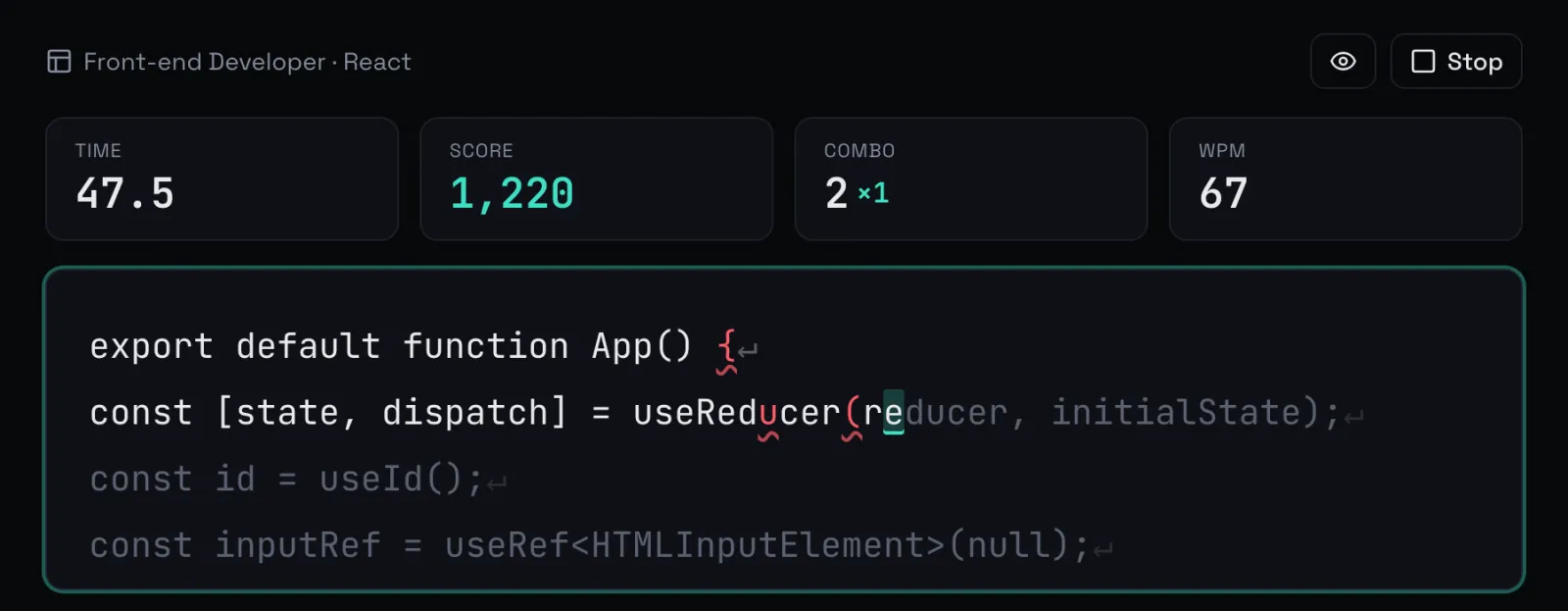 An arcade run on React material. Slips on { and ( reset the combo.
Six retro games turn IT work into typing practice. In DDoS Defense you type the status code, source IP or firewall command each attack carries, in Bug Hunter you squash bugs by typing their error names, and in Pipeline Runner you type commands to move a build from Dev to Production. For live play, Bot Race puts you in a private room with up to seven friends, and Boss Duels is a ladder of Scrum-team bosses, from the new starter to the exec sponsor.
The Touch Typing courses run from a Beginner level of 16 key-by-key lessons, from the home row to the number row, to Intermediate and Advanced lessons written for IT: version numbers, IP addresses, the command line, SQL, JSON and YAML, and regular expressions. There are also daily and weekly challenges, team boards, badges, and Vim and Emacs motion drills.
It supports nine keyboard layouts (US, UK, Spanish, German, French, Dvorak, Colemak, Colemak-DH and Canary) on a standard board or a split 34-key one, with a printable finger placement guide for each, and four interface languages: English, Afrikaans, isiZulu and Spanish.
Your keystrokes, results and progress stay in your browser, along with everything the camera records, and there's no account. A score leaves your device only if you choose to post it to the shared leaderboard.
How the keyboard at the top of this page works
The report's keyboard in cueset/type is built with three.js through react-three-fiber, and hovering over a key shows its numbers. The figure at the top of this page does the same with plain three.js and the numbers from our scripted run, so you can try it without taking a diagnostic.
Pointing at something in a 3D scene is called raycasting. You turn the pointer's position into a ray from the camera and ask which objects the ray passes through. Each key cap is its own mesh, so the first one the ray hits is the key under the pointer:
// Pointer position in normalised device coordinates: -1 to 1 on both axes
pointer.x = ((event.clientX - rect.left) / rect.width) * 2 - 1;
pointer.y = -((event.clientY - rect.top) / rect.height) * 2 + 1;

// Each frame, after drawing, while the mouse is over the figure
raycaster.setFromCamera(pointer, camera);
const hit = raycaster.intersectObjects(capMeshes, false)[0];
picked = hit ? hit.object.userData.cap : -1;
The legends sit on top of the caps, so they opt out of raycasting. Without that, the ray would hit a legend first and miss the key underneath it.
The ray is cast on every frame while the mouse is over the figure. The keyboard sways and can be dragged, so the key under a pointer that hasn't moved still changes.
On a phone there is no hover, so a tap picks a key once and the selection stays until the next tap. A press that moves more than a few pixels turns the figure instead.
The canvas is hidden from screen readers, so the caption under it says what each view shows. Readers who prefer reduced motion, or whose browser has no WebGL, never download the 3D code.
React-three-fiber's onPointerOver does the same raycast for you, which is how the app's own report works.
Try it
A diagnostic takes about three minutes. Open cueset/type, pick your role, and type at your normal pace, since the report can only find your habits if you type with them. For Virtual Coach you also need a webcam that can see your hands on the keys. One on a stand, angled down at the keyboard, works best, or you can tilt a laptop screen back until its camera looks down at the keys. The evidence and help page lists the research behind the measurements, including Dhakal and colleagues' 2018 study of 136 million keystrokes.